Disro for Slack
Disro brings your AI workspace into Slack so authorized team members can ask questions, turn conversations into follow-ups, review proposed actions, approve work, and receive recurring reports without leaving the team conversation.
Workspace admin approval may be required. Disro only works with the permissions your workspace grants.


Disro for Slack lets authorized workspaces use Disro through Slack-native workflows, including:
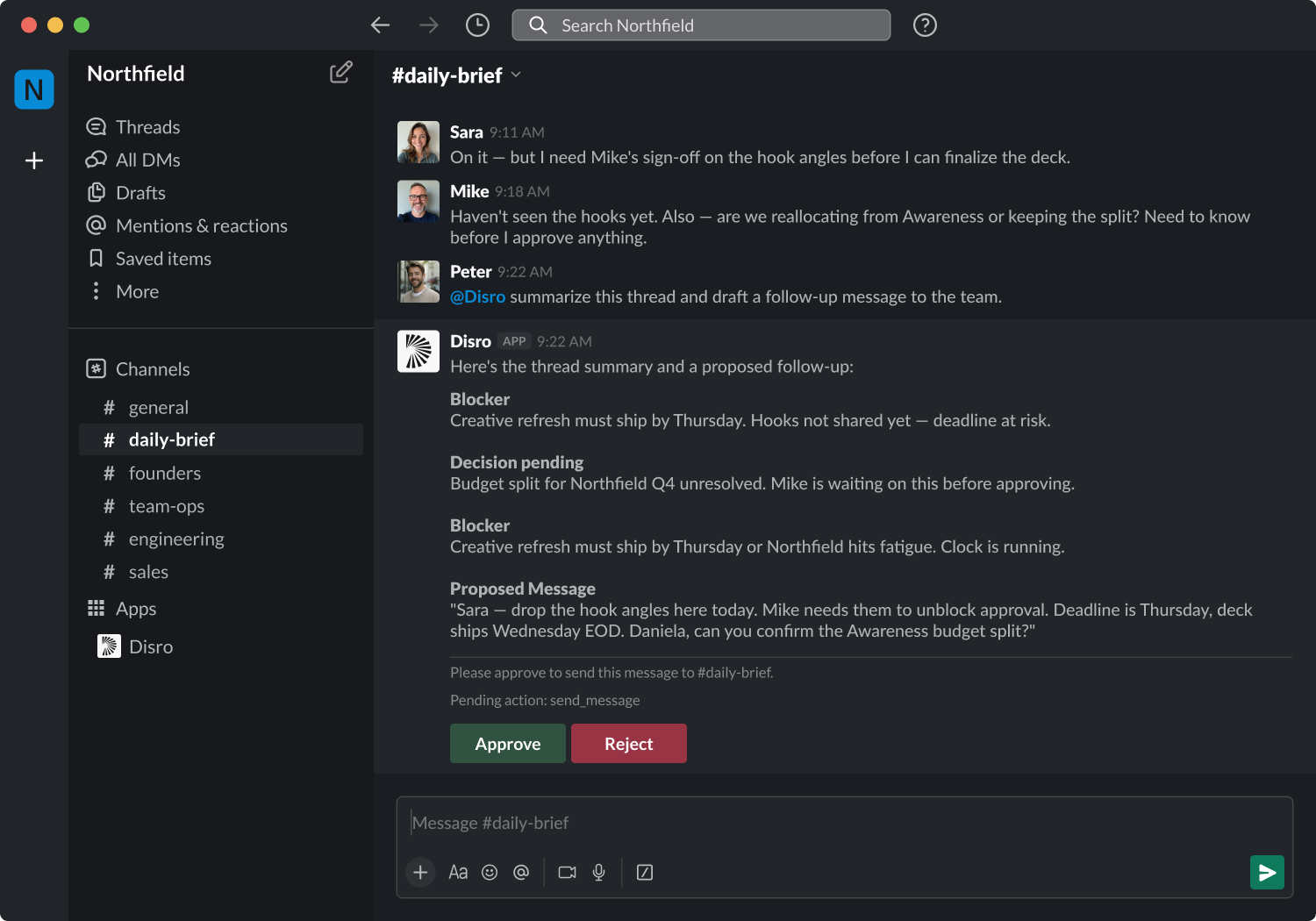
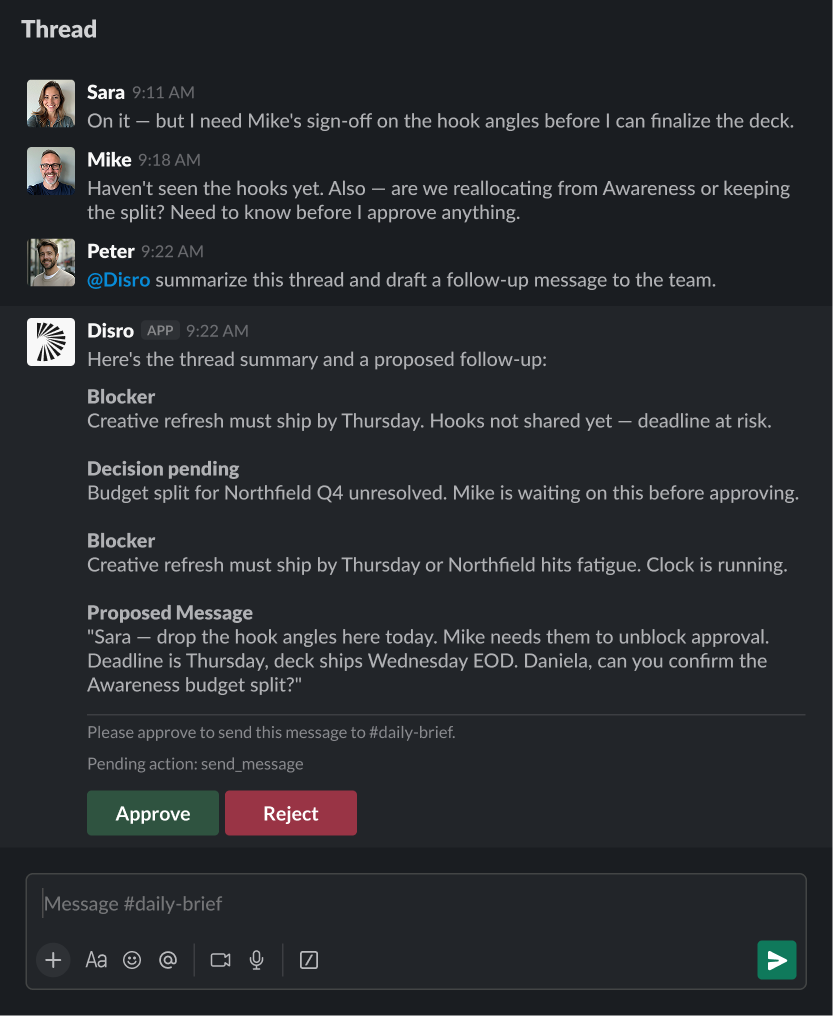
Ask Disro in any channel or thread using @Disro. Disro responds in-thread so conversations stay organized.
DM Disro for individual follow-up, private questions, or one-on-one task management without involving a full channel.
Use /disro or other enabled Disro commands to kick off tasks and queries directly from the Slack message bar.
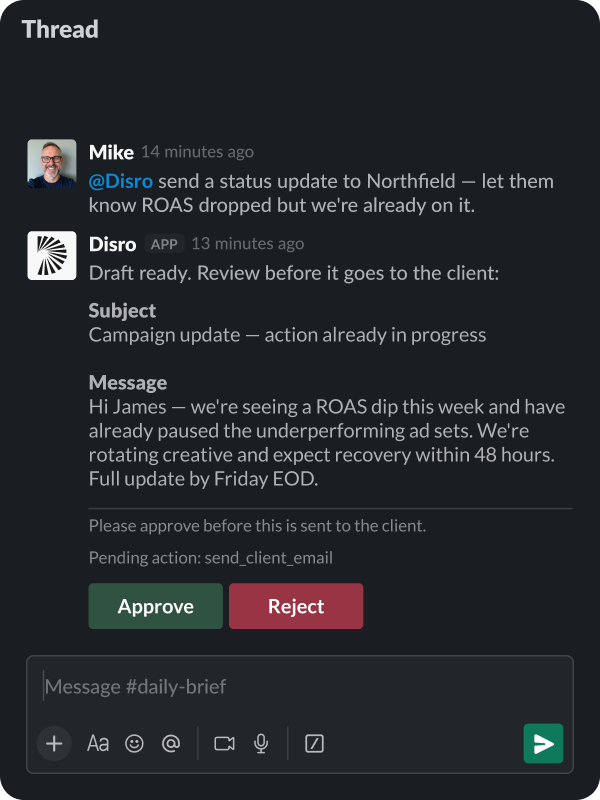
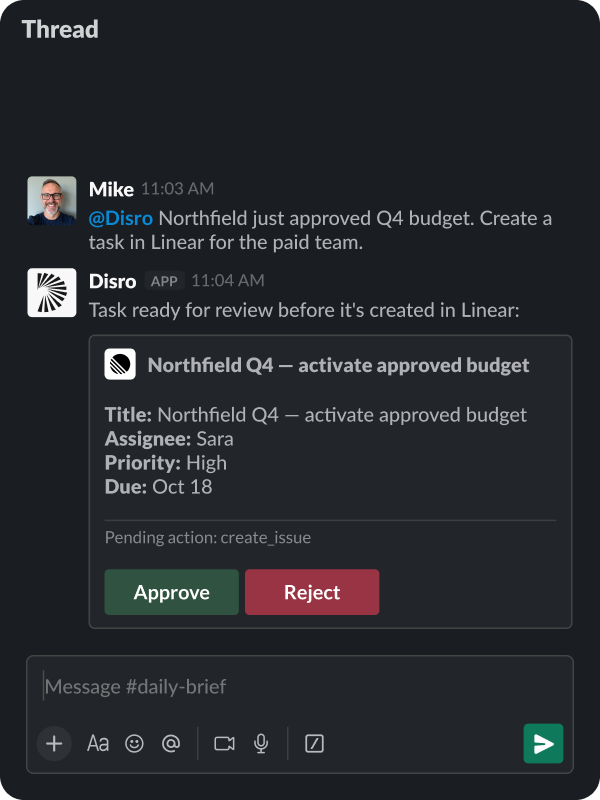
Review proposed actions with Slack approval buttons or modals before anything sensitive is posted, updated, or escalated.
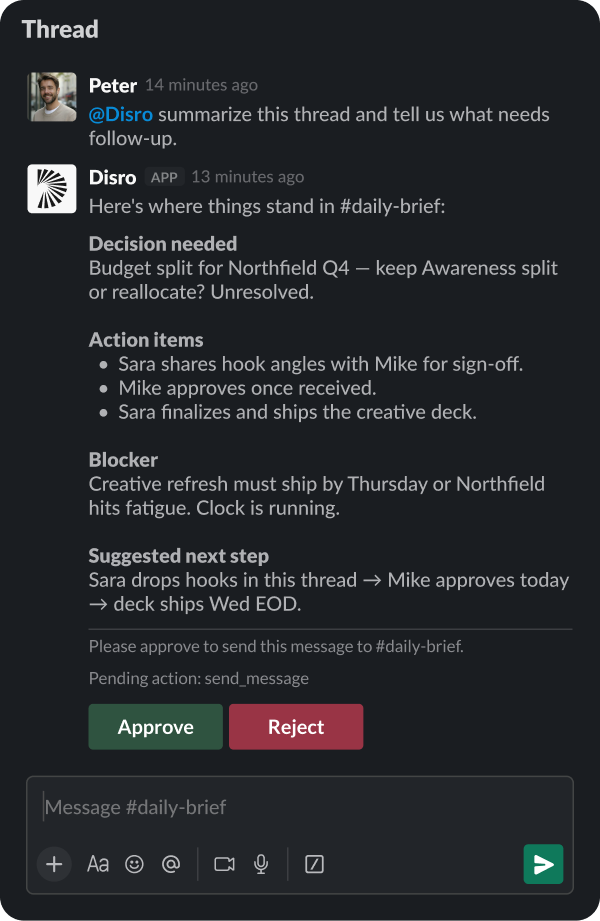
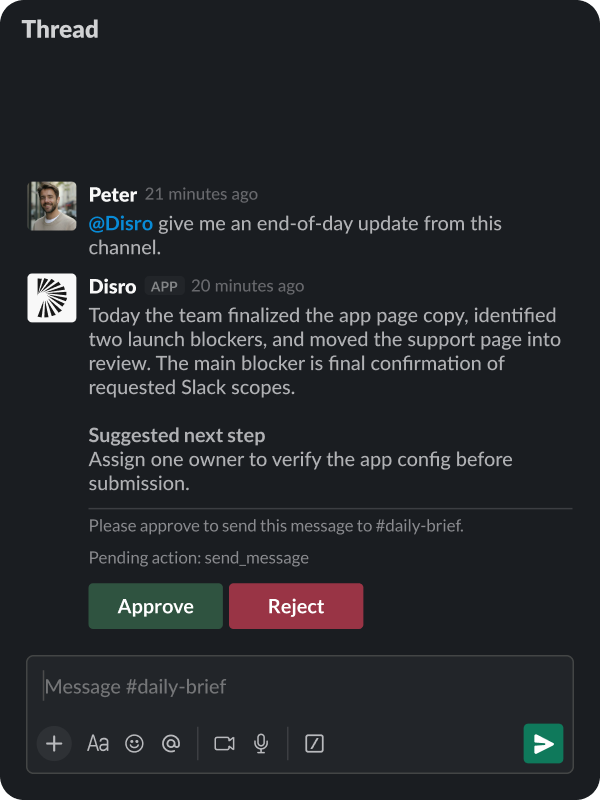
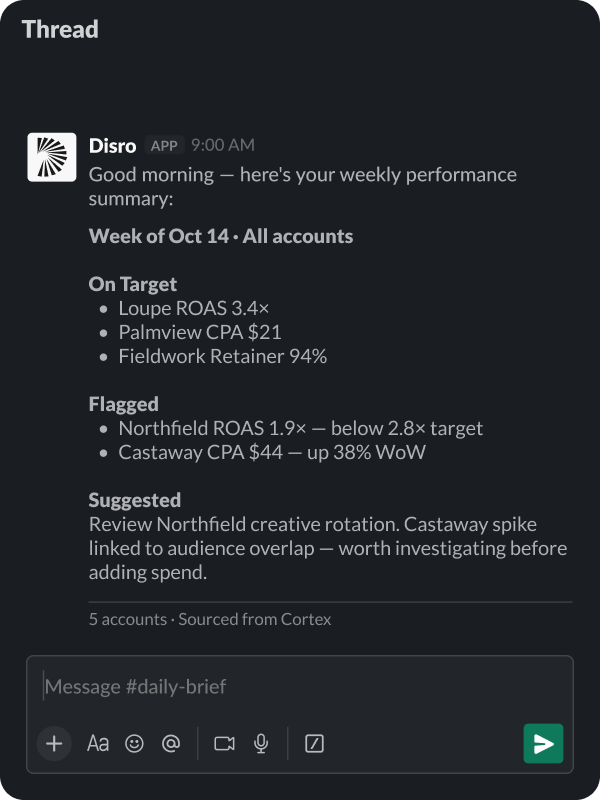
Configure Disro to send daily or end-of-day reports to a Slack channel, and check back proactively on open workflows so important work doesn't go quiet.
Disro can draft and post Slack replies or messages when requested and approved through a configured workflow.
How Disro works inside your Slack workspace, from install to recurring reports.
Install Disro for Slack
Use the Add to Slack button, approve the requested Slack permissions, and connect the Slack workspace to the correct Disro account.
Invite Disro where it should work
Add Disro to the channels or conversations where your team wants to use it. Disro only has access where the workspace grants access and where the app is allowed to operate.
Ask Disro from Slack
Mention Disro, send a direct message, use an enabled slash command, or interact with a Disro prompt. Disro can use the authorized Slack context and any connected tools your workspace has enabled.
Review the output
Disro can generate summaries, drafts, recommendations, scorecards, proposed updates, and next steps. AI output can be incomplete or inaccurate, so important output should be reviewed before it is relied on or shared externally.
Approve sensitive actions
When a workflow requires approval, Disro can show Slack approval buttons or modals so a user can review and approve the action before it is completed.
Receive reports and follow-ups
Disro can send recurring reports and proactive follow-ups in Slack when those workflows are configured for your workspace.
Common ways teams put Disro to work inside Slack.
Summarize product or engineering conversations
Ask Disro to turn a Slack thread or channel discussion into decisions, blockers, owners, and next steps.

Create reviewable updates
Use Disro to draft status updates, end-of-day reports, scorecards, release notes, or follow-ups from authorized Slack context and connected tools.

Coordinate approvals
Review proposed actions in Slack before Disro posts, updates, or escalates anything that requires human confirmation.

Stay on top of recurring work
Configure Disro to send recurring Slack reports or proactive follow-ups so important work does not disappear after a conversation ends.

Connect Slack with your work graph
When your workspace connects other tools to Disro, Slack can become the place where work is requested, reviewed, and approved while Disro uses the connected systems your team has authorized.

Permissions & Data
Disro only works with Slack data and locations your workspace authorizes. The exact Slack data Disro can access depends on the scopes granted during installation, the channels where Disro has been added, workspace settings, and the Disro features enabled for the workspace.
Disro may process Slack workspace information, user identifiers, authorized channel or thread content, app mentions, direct messages sent to Disro, slash command text, approval interactions, timestamps, and related metadata when needed to provide the service.
Disro does not sell Slack Customer Data. Disro does not use Slack Customer Data to train, fine-tune, evaluate, or improve large language models. See the Privacy Policy for more detail.
AI Output Notice
Disro uses AI to generate summaries, drafts, recommendations, and proposed next actions. AI-generated output may be incomplete or inaccurate. Review important outputs before relying on them, sharing them externally, or approving sensitive actions.
Answers about how Disro works inside your Slack workspace.
Disro for Slack lets authorized Slack workspaces use Disro from Slack through mentions, direct messages, slash commands, approval flows, recurring reports, proactive follow-ups, and requested Slack replies or posts.
Install Disro for Slack, approve the requested permissions, connect your Disro account if required, and add Disro to the channels or conversations where it should work.
No. Disro only works with Slack data and locations your workspace authorizes and where the app has access.
Disro follows the permissions and workflows configured for your workspace. Sensitive actions should use review or approval flows before they are completed.
No. Disro does not use Slack Customer Data to train, fine-tune, evaluate, or improve large language models.
A Slack workspace administrator can remove Disro from Slack through Slack app settings. For help with removal, deletion, or privacy requests, email support@disro.com.